


















































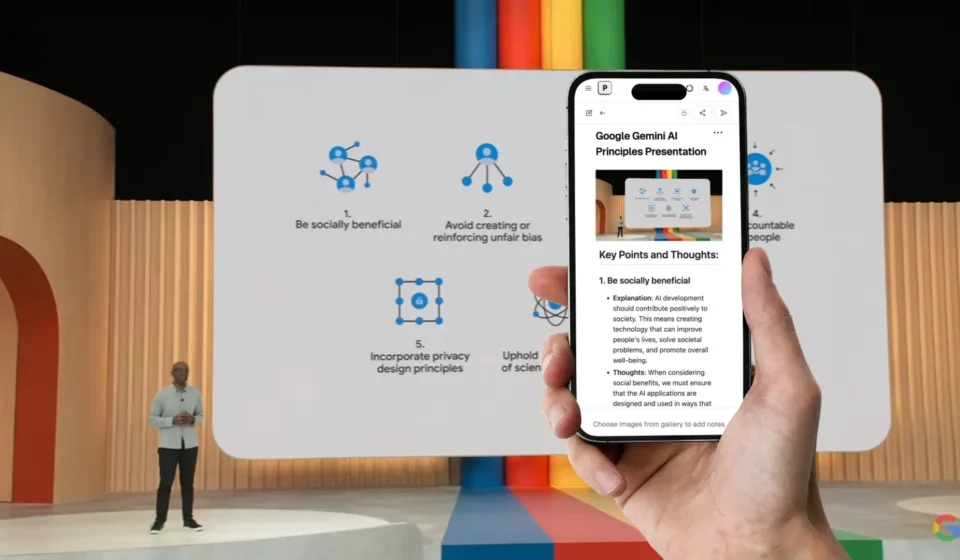

Turning documents and rough notes into professional presentations can be a time-consuming task. Whether you are preparing a business report, educational lesson, marketing proposal, or client presentation, you need to organize information, choose suitable layouts, and ensure that every slide communicates a clear message. Doing all this manually can require considerable time and design effort.
An AI presentation template generator makes this process easier by helping users transform written information into structured slides. Instead of starting with a blank presentation, users can provide documents, notes, outlines, or topic descriptions and use artificial intelligence to develop an initial presentation structure.
This approach can improve productivity while helping users maintain consistent slide designs. When combined with interactive presentation tools, it can also create opportunities to make presentations more engaging through quizzes, clickable elements, audience polls, and other features that encourage participation.
Understanding how to prepare source material, generate slide layouts, and customize the final presentation can help you create reusable templates for different professional and educational purposes.
What Is an AI Presentation Template Generator?
An AI presentation template generator is a digital tool that uses artificial intelligence to help organize content and create presentation layouts. Depending on the platform, it may accept text prompts, uploaded documents, meeting notes, reports, or other supported source materials.
After receiving the information, the tool can help identify important topics, suggest slide titles, arrange content into sections, and recommend visual layouts.
For example, imagine that a business professional has a ten-page report about quarterly performance. The report contains sales figures, customer feedback, marketing results, and recommendations for the next quarter.
Rather than copying every section into individual slides, the user can provide the report to a suitable AI presentation tool. The tool may help summarize the key findings and organize them into a presentation covering performance highlights, challenges, important metrics, and recommended actions.
The user can then review the generated content, correct any errors, and customize the design.
The result is a more efficient starting point for creating a presentation that communicates the original information clearly.
Why Convert Documents and Notes into Presentations with AI?
Documents and notes often contain valuable information, but their structure is not always suitable for presentation slides. A report may include lengthy explanations, while meeting notes may contain incomplete sentences, repeated ideas, and information recorded in no particular order.
AI can help bridge the gap between written material and presentation-ready content.
Save Time on Manual Formatting
Creating slides manually requires users to copy information, write headings, arrange text, and adjust layouts. These repetitive tasks can become especially demanding when preparing presentations regularly.
AI presentation tools can automate parts of the initial process by organizing information into a proposed slide structure.
For instance, a project manager can use meeting notes to create a presentation containing project progress, completed tasks, pending activities, potential risks, and upcoming deadlines.
The generated structure provides a starting point that can be refined instead of built entirely from scratch.
Organize Information More Effectively
A well-written document does not always translate directly into a good presentation.
Documents may contain several paragraphs explaining one idea, whereas presentation slides generally benefit from concise statements and clearly defined sections.
AI tools can help identify central ideas and group related information together.
This makes it easier to transform lengthy source material into a logical sequence that an audience can follow.
Create Consistent Slide Designs
Reusable templates make presentation creation more predictable.
Once users establish a preferred layout, they can apply it to future presentations without redesigning every slide.
For example, a company may use a standard template containing an introduction, objectives, performance metrics, challenges, recommendations, and a conclusion.
The content changes with each report, but the overall structure and visual identity remain consistent.
Improve Collaboration
Teams often prepare presentations using information collected from different people and documents.
An AI-generated outline can provide a common structure for organizing this information. Team members can then review individual sections, correct details, and contribute relevant examples.
This can make the preparation process easier to manage, particularly when several people are working on the same project.
Step-by-Step Guide to Turning Documents into Presentation Templates
The quality of an interactive presentation tools depends on the source material, instructions, and review process. Following a structured workflow can help you produce more useful results.
Step 1: Gather Your Source Material
Start by collecting the information you want to present.
Your source material might include:
- Business reports and research documents.
- Meeting notes and project summaries.
- Marketing plans and campaign results.
- Educational notes and lesson outlines.
- Product descriptions and company information.
- Survey findings and performance data.
Choose the documents that contain the most relevant information for your presentation.
If the source material contains sensitive business or personal information, review the platform’s privacy and data-handling practices before uploading it.
Step 2: Identify the Main Objective
Before generating slides, decide what the presentation needs to accomplish.
A business report may communicate progress and explain performance. A training presentation may teach a process, while a sales deck may introduce a product and demonstrate its value.
Your objective determines which information deserves the most attention.
For example, if your goal is to explain quarterly business performance, you may prioritize revenue, expenses, customer growth, challenges, and future recommendations rather than including every detail from the original report.
Step 3: Clean and Organize Your Notes
AI tools can help organize unstructured information, but preparing your notes can improve the quality of the result.
Remove duplicated information, correct obvious mistakes, and separate unrelated topics.
If you are working with meeting notes, identify decisions, action items, deadlines, and unresolved questions.
For a research document, highlight the main findings, supporting evidence, and conclusions.
This preparation helps the AI tool focus on information that matters to your audience.
Step 4: Upload the Document or Enter Your Notes
Choose a presentation tool that supports your preferred input format.
Some platforms accept document uploads, while others work primarily with text prompts or pasted content. Supported formats and document-size limits vary, so check the tool’s capabilities before beginning.
If uploading is unavailable, you can often paste the most important sections into the prompt field.
Provide enough context for the tool to understand the topic, audience, and purpose of the presentation.
Step 5: Write a Clear AI Prompt
A specific prompt can help produce a more relevant presentation.
Instead of simply asking for slides about a topic, explain how the information should be organized.
For example:
“Turn these project notes into a professional 10-slide presentation for a business audience. Include an introduction, project objectives, completed tasks, current progress, key challenges, performance indicators, upcoming deadlines, and recommendations. Summarize long explanations into concise bullet points. Use a clean design, readable headings, and consistent slide layouts. Preserve all important facts and figures from the source material.”
This prompt communicates the desired length, audience, structure, and design style.
You can adjust the instructions according to the type of document and the purpose of the presentation.
Step 6: Generate and Review the Slide Outline
Before focusing on the design, review the proposed slide sequence.
Check whether the introduction explains the topic, the main sections follow a logical order, and the conclusion reinforces the most important points.
Remove repeated sections and add any missing information.
If the presentation is too detailed, ask the tool to shorten it. If important information is missing, provide additional context and request a revised outline.
Step 7: Customize the Presentation Template
Once the content structure is suitable, customize the slide design.
Choose consistent fonts, colors, heading styles, and spacing. Add charts, diagrams, or images where they help explain the information.
You can also create multiple layouts for different types of content.
For example, a reusable business presentation template might include a title slide, an agenda, a text-and-image layout, a data chart, a comparison slide, and a final recommendations slide.
These layouts can be reused for future reports by replacing the existing content.
Step 8: Add Interactive Elements
Some presentations benefit from more than static slides.
Depending on the capabilities of your chosen platform, interactive presentation tools can help you add clickable navigation, audience polls, quizzes, embedded media, or other participation features.
For example, a training presentation created from internal documentation could include short knowledge checks after important sections.
A business presentation might use clickable navigation to let viewers explore different product categories or project areas.
Interactive features should support the presentation’s objective rather than distract from the information.
Step 9: Verify the Content and Final Design
Always review the generated presentation before sharing it.
Compare important statements and figures against the original document. Check names, dates, calculations, and other details that could affect the accuracy of the presentation.
Make sure that charts accurately represent the data and that summaries do not change the meaning of the source material.
Finally, check spelling, readability, spacing, and any interactive features.
This review is essential because AI-generated content can contain mistakes or omit important context.
How to Turn Rough Notes into Reusable Presentation Templates
Rough notes require a slightly different approach from polished documents because they may contain incomplete thoughts and information without a clear sequence.
The first step is to identify the central topic and divide the notes into meaningful categories.
For example, notes from a marketing meeting might contain the following information:
- A new campaign will launch next month.
- The target audience includes small business owners.
- The team plans to use email marketing and social media.
- The campaign budget requires approval.
- Performance will be measured through leads and conversions.
These notes can be organized into a presentation covering campaign objectives, target audience, marketing channels, budget considerations, and performance measurement.
After generating the slides, save the most useful layouts as a reusable template if the platform supports this feature.
Future campaign presentations can follow the same structure while incorporating updated budgets, channels, and performance results.
This method is especially useful for teams that prepare recurring reports or regularly communicate similar types of information.
Best Practices for Creating High-Quality AI Presentation Templates
A successful template should be easy to understand, visually consistent, and flexible enough to accommodate different content.
Keep Slides Concise
Avoid transferring entire paragraphs from a document directly into presentation slides.
Focus on the main message, essential supporting details, and important figures.
If additional context is necessary, the presenter can explain it verbally or include it in supporting notes.
Preserve Important Information
Summarizing content should not mean removing details that affect its meaning.
Keep essential qualifications, important limitations, key findings, and relevant supporting evidence.
This is particularly important for financial reports, research presentations, and business recommendations.
Use Visuals to Explain Complex Ideas
Charts, diagrams, timelines, and comparison tables can make complicated information easier to understand.
For example, a project timeline may communicate deadlines more clearly than a lengthy written description.
However, visuals should be accurate and relevant to the message.
Maintain Consistent Branding
Choose a consistent color palette, font combination, and layout style.
If the presentation is intended for business use, follow the organization’s branding requirements.
Reusable templates make it easier to preserve this visual identity across different projects.
Build Flexible Layouts
A template should accommodate different types of information.
Include layouts for text, images, charts, comparisons, and process explanations instead of relying on one design for every slide.
Flexible layouts allow users to reuse the template without forcing unrelated content into unsuitable structures.
Make Interactive Features Purposeful
When adding interactive elements, consider what the audience should learn or accomplish.
A quiz may help reinforce a lesson, while a clickable diagram may explain a complicated process.
Use these features selectively to improve engagement and understanding.
Common Mistakes to Avoid When Using AI for Presentation Creation
Although AI can simplify the process, several mistakes can reduce the quality of the final presentation.
Uploading documents without checking their quality: Disorganized or incomplete source material can lead to confusing slide content. Clean up the information whenever possible.
Using vague prompts: General instructions may produce generic slides. Include the audience, purpose, preferred structure, and design requirements.
Accepting every AI-generated statement: Always verify facts, figures, and important claims against the original source.
Overloading slides with text: A presentation should highlight the main points rather than reproduce an entire document.
Ignoring the audience: A presentation for specialists may require different terminology and detail than one intended for beginners.
Using too many design elements: Excessive colors, animations, and decorative graphics can distract from the main message.
Forgetting to save reusable layouts: If a presentation structure works well, preserve it as a template when the platform allows it. This makes future projects easier to prepare.
Avoiding these mistakes helps users create presentations that are both efficient to produce and effective to deliver.
Who Can Benefit from AI-Powered Presentation Templates?
AI presentation templates are useful for people who regularly convert written information into visual communication.
Business Professionals
Managers can transform reports, meeting notes, and project updates into presentations for colleagues and stakeholders.
Reusable layouts help maintain consistency across monthly reports and planning meetings.
Teachers and Students
Teachers can turn lesson notes into structured classroom presentations, while students can organize research documents into academic slides.
Interactive exercises may help learners participate more actively.
Marketing Teams
Marketing professionals can transform campaign plans, research findings, and performance reports into clear presentations.
Standardized templates can also make it easier to prepare recurring client updates.
Freelancers and Consultants
Freelancers and consultants can use AI-generated templates for proposals, project summaries, training materials, and client presentations.
A consistent design can help them communicate their services and recommendations professionally.
Entrepreneurs and Small Businesses
Small business owners can create company introductions, product presentations, business plans, and sales materials without designing every slide manually.
Templates make it easier to update these presentations as products, services, and business goals change.
How AI Presentation Templates Improve Productivity
AI-powered presentation workflows can reduce repetitive work and make it easier to reuse existing content.
Instead of manually extracting information from a report and arranging it into slides, users can begin with an AI-generated outline. They can then focus on checking the information, improving the narrative, and customizing the design.
Reusable templates provide additional benefits by reducing the need to create layouts repeatedly.
For example, a consultant who prepares monthly performance reports can use the same slide structure for every client update. The consultant only needs to replace the previous month’s figures, add new findings, and revise the recommendations.
Similarly, a teacher can reuse a lesson template while changing the topic, examples, and learning objectives.
The amount of time saved depends on the complexity of the material, the capabilities of the chosen platform, and the editing required. Human review remains important for maintaining accuracy and relevance.
Conclusion
Turning documents and notes into presentation templates with AI can make slide creation more efficient and organized. By preparing source material, defining clear objectives, writing detailed prompts, and reviewing generated content, users can transform written information into structured presentations without designing every slide from scratch.
Reusable templates further simplify the process by maintaining consistent layouts and reducing repetitive formatting work. When appropriate, interactive presentation tools can add quizzes, clickable navigation, and audience participation features that make presentations more engaging.
The most effective workflow combines AI automation with human judgment. Use AI to organize and structure information, customize the design to suit your audience, verify important details, and save useful layouts for future projects. This approach helps create professional, reusable presentations that communicate ideas clearly while making better use of your time.
